
Scriptable Value
All the types that inherit from ScriptableValue<T> are values. They are the most basic type of Scriptable Value and are used to store a single value.
They are always named along the lines of ScriptableType. For example: ScriptableBool, ScriptableFloat, and ScriptableVector3.
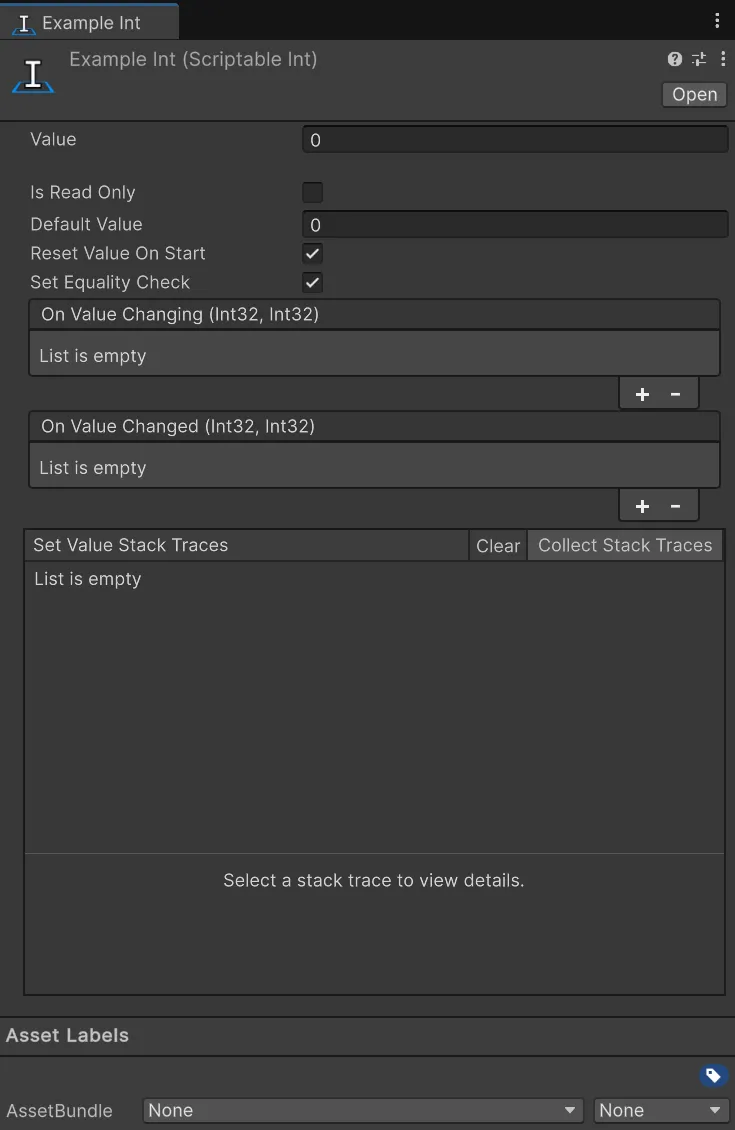
Using a Scriptable Value in your code is really straight forward. You can use the Value property to get or set the value of the Scriptable Value. For example:
using Hertzole.ScriptableValues;using UnityEngine;
public class PlayerHealth : MonoBehaviour{    public ScriptableInt health;
    public void TakeDamage(int damage)    {        health.Value -= damage;    }}
Then you can use the events to get notified when the value changes. For example:
using Hertzole.ScriptableValues;using UnityEngine;using UnityEngine.UI;
public class HealthUI : MonoBehaviour{    public ScriptableInt health;    public Text healthText;
    private void OnEnable()    {        health.OnValueChanged += OnHealthChanged;    }
    private void OnDisable()    {        health.OnValueChanged -= OnHealthChanged;    }
    private void OnHealthChanged(int oldValue, int newValue)    {        healthText.text = "Health: " + newValue.ToString();    }}
You can also use the OnValueChanging event to get notified when the value is about to change.
Remember to unsubscribe from events when you no longer need them. See the events section for more information.
Included Types
Section titled “Included Types”The following types are included for your convenience:
boolBoundsBoundsIntbytecharColorColor32decimaldoublefloatintlongQuaternionRectRectIntsbyteshortstringuintulongushortVector2Vector2IntVector3Vector3IntVector4
Propereties
Section titled “Propereties”The following properties are available on all Scriptable Values:
Is Read Only
Section titled “Is Read Only”Marks the scriptable value as read-only. This means that the value cannot be changed at runtime and will always have the same value. This is useful for values that are set in the editor and should not be changed at runtime.
Reset Value On Start
Section titled “Reset Value On Start”Resets the value to the default value when the game starts. This is useful for values that should be reset to a default value when the game starts, such as a health value or a score value. Disabling this will keep the value from the last play session.
Set Equality Check
Section titled “Set Equality Check”When this is enabled OnValueChanging and OnValueChanged will not be triggered when the value is set to the same value as it already has. This is useful for values that are set frequently and should not trigger the events when the value is the same.
The current value of the Scriptable Value. This is the value that will be used when the game is running. Changing this value in the editor or by script via Value will trigger the OnValueChanging and OnValueChanged events.
Default Value
Section titled “Default Value”The default value of the Scriptable Value. This is the value that will be used when the game starts if Reset Value On Start is enabled. This value can be changed in the editor and will not trigger the OnValueChanging and OnValueChanged events.
Creating Your Own Scriptable Value
Section titled “Creating Your Own Scriptable Value”Creating your own Scriptable Value is really easy! All you need to do is inherit from ScriptableValue<T>.
using Hertzole.ScriptableValues;using UnityEngine;
[CreateAssetMenu]public class MyScriptableValue : ScriptableValue<int>{    // You can add your own properties and methods here}
If you want to extend the functionality of your own Scriptable Value you can override a few methods.
using Hertzole.ScriptableValues;using UnityEngine;
[CreateAssetMenu]public class MyScriptableValue : ScriptableValue<int>{    // Called before the value is changed    protected override bool OnBeforeSetValue(int newValue)    {        // Do something before the value is set        return true; // Return false to cancel the change    }
    // Called after the value is changed    protected override void OnAfterSetValue(int oldValue, int newValue)    {        // Do something after the value is set    }}
There are more methods you can use and need to be mindfull of when using. See Creating Custom Types for more information.